You don’t have to use Martia’s chat. If you already talk to ChatGPT or Claude, connect Martia to them and ask about money there. Answers are based on your real transactions. The connection is read-only — you create and revoke it yourself in the assistant’s settings.
Version with screenshots: Martia in ChatGPT and Claude — how to connect
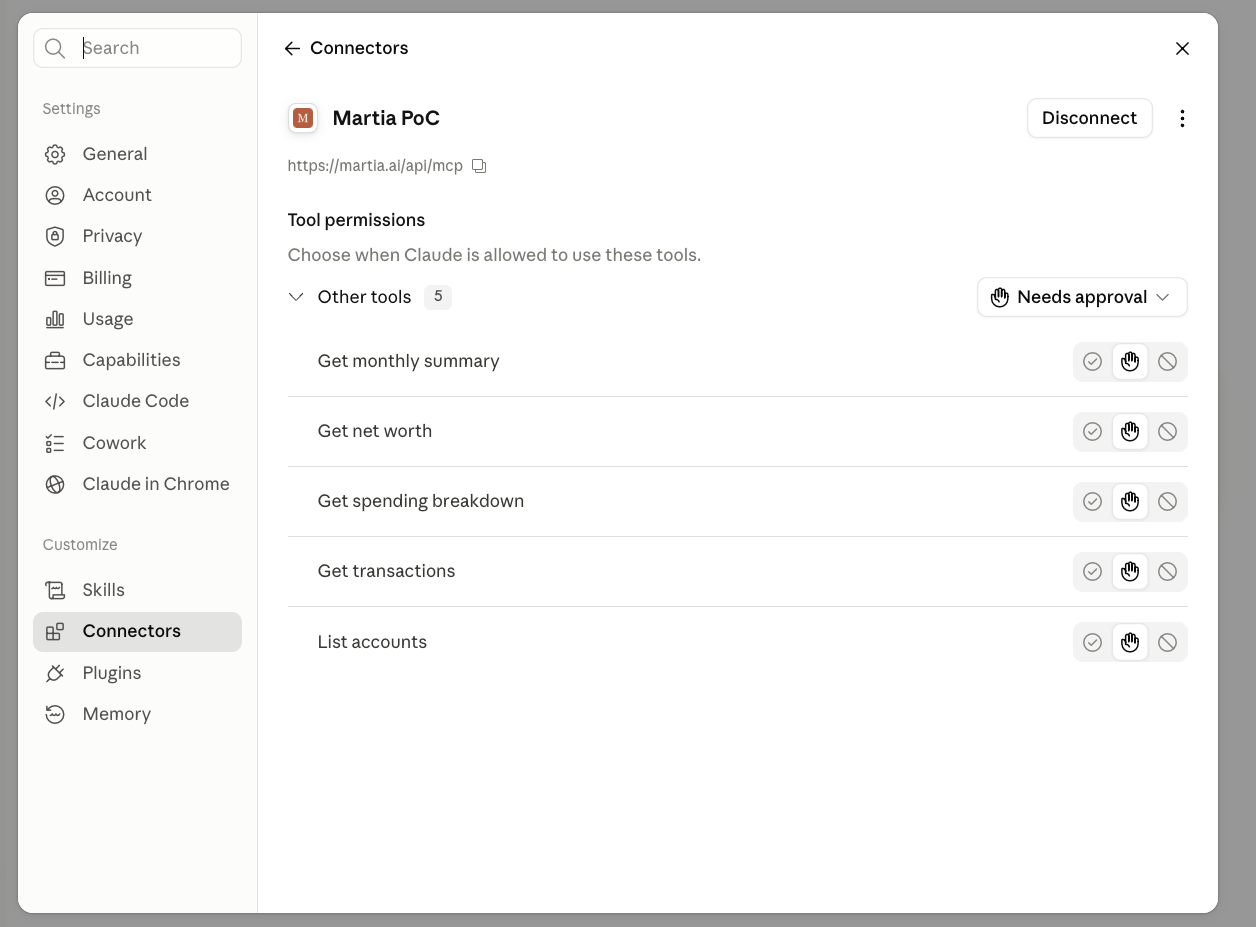
What the assistant can see
- Your accounts and current balances
- Transactions, with filtering by date, category, and account
- Spending by category in a selected period
- Monthly summary: income, expenses, balance
- Net worth — balances and declared assets minus liabilities
What it can’t do
- It won’t change or delete anything in your account
- It won’t categorize transactions or correct descriptions
- It won’t touch your budget or execute any transfers
- It won’t see your full account number — only the last four digits
Where data goes
If you connect Martia to ChatGPT or Claude, your transactions go to that assistant so it can answer your question. This is a conscious decision you make yourself in the assistant’s settings.
You create the connection through regular Martia login and a consent screen — you don’t give anyone your password or banking details. The assistant talks to Martia, Martia talks to the bank.
Server address
https://martia.ai/api/mcp
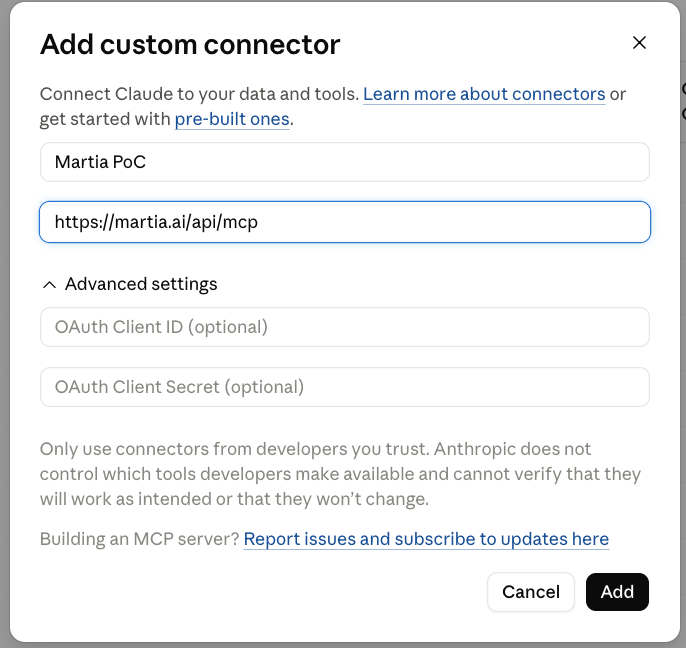
How to connect in Claude
- Open Settings → Connectors.
- Choose to add a custom connector.
- Paste Martia’s server address (above) and leave the OAuth fields empty.
- Log in to Martia and confirm consent.
How to connect in ChatGPT
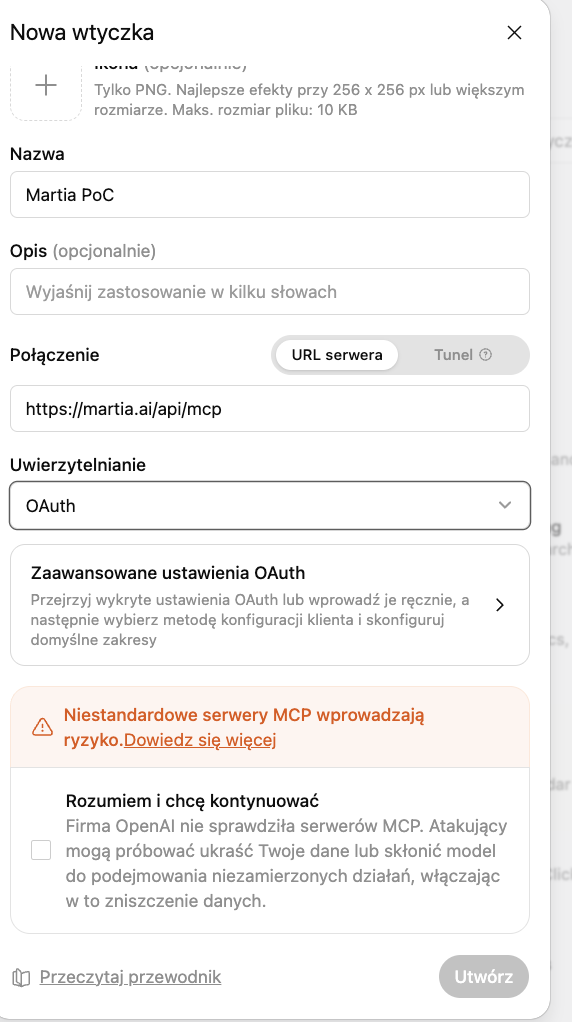
- Open plugin settings and choose to add a new one.
- In the connection field, paste Martia’s server address, and select OAuth as authentication.
- Check the box to consent to using a custom server and create the plugin.
- Log in to Martia and confirm access.
ChatGPT creates its own identifier for each plugin, which we need to approve on our side first. If you see an error after logging in, write to support@martia.ai — we’ll usually unblock it the same day. Once Martia enters the official catalog, this step will disappear.
How to disconnect
In the assistant’s settings, in the same place where you added the connection, choose to disconnect. From that moment, the assistant loses access to your data. You can do this at any time without contacting us.
What to ask
- How much did I spend on food in July?
- Show me my expenses from last month by category and draw a chart.
- How much do I have in total across accounts right now?
- What am I spending the most on that I probably don’t realize?
If any step doesn’t match what you see in ChatGPT or Claude — write in this thread, we’ll correct the instructions.